User Guide
Adding Extensions
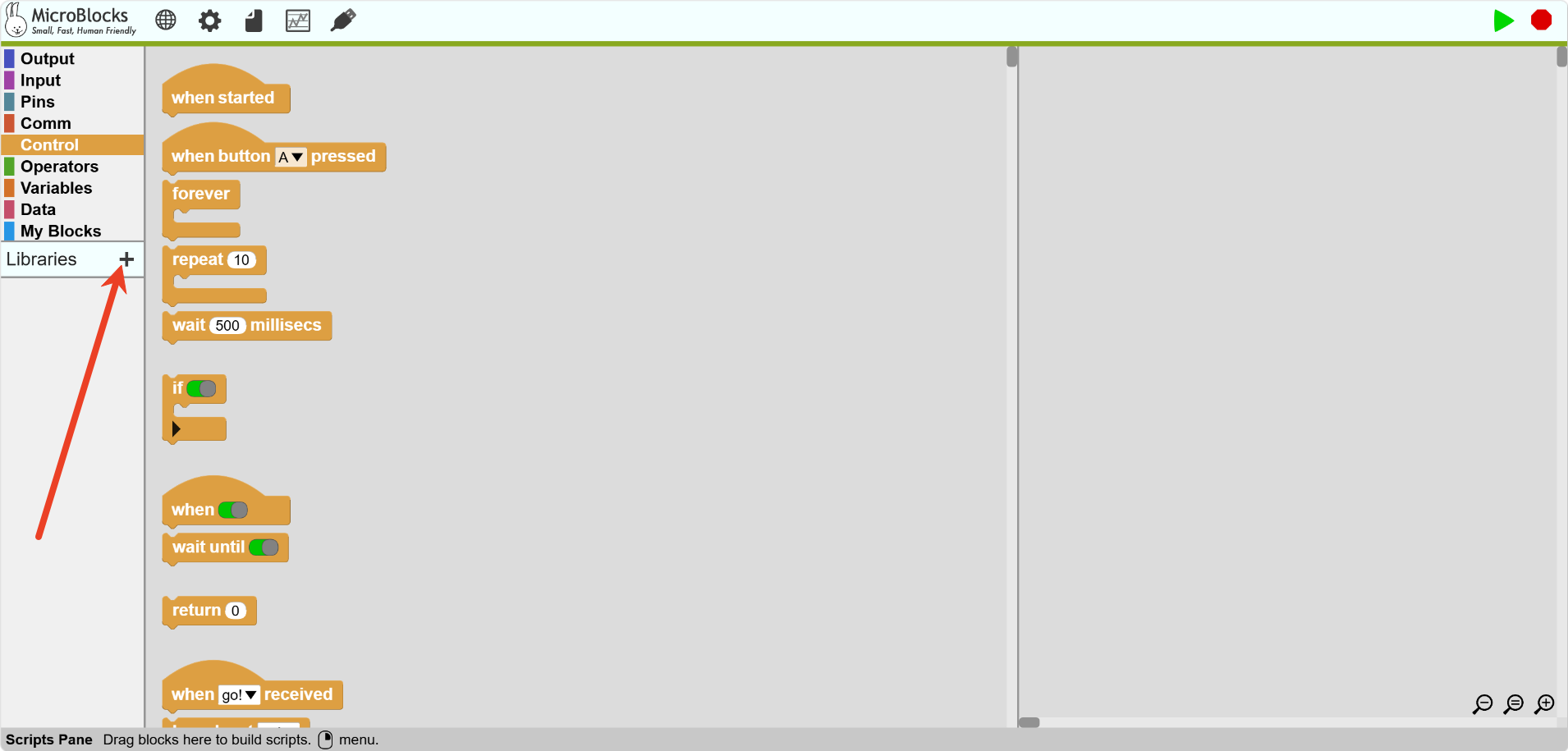
Click the “Block Library” button.
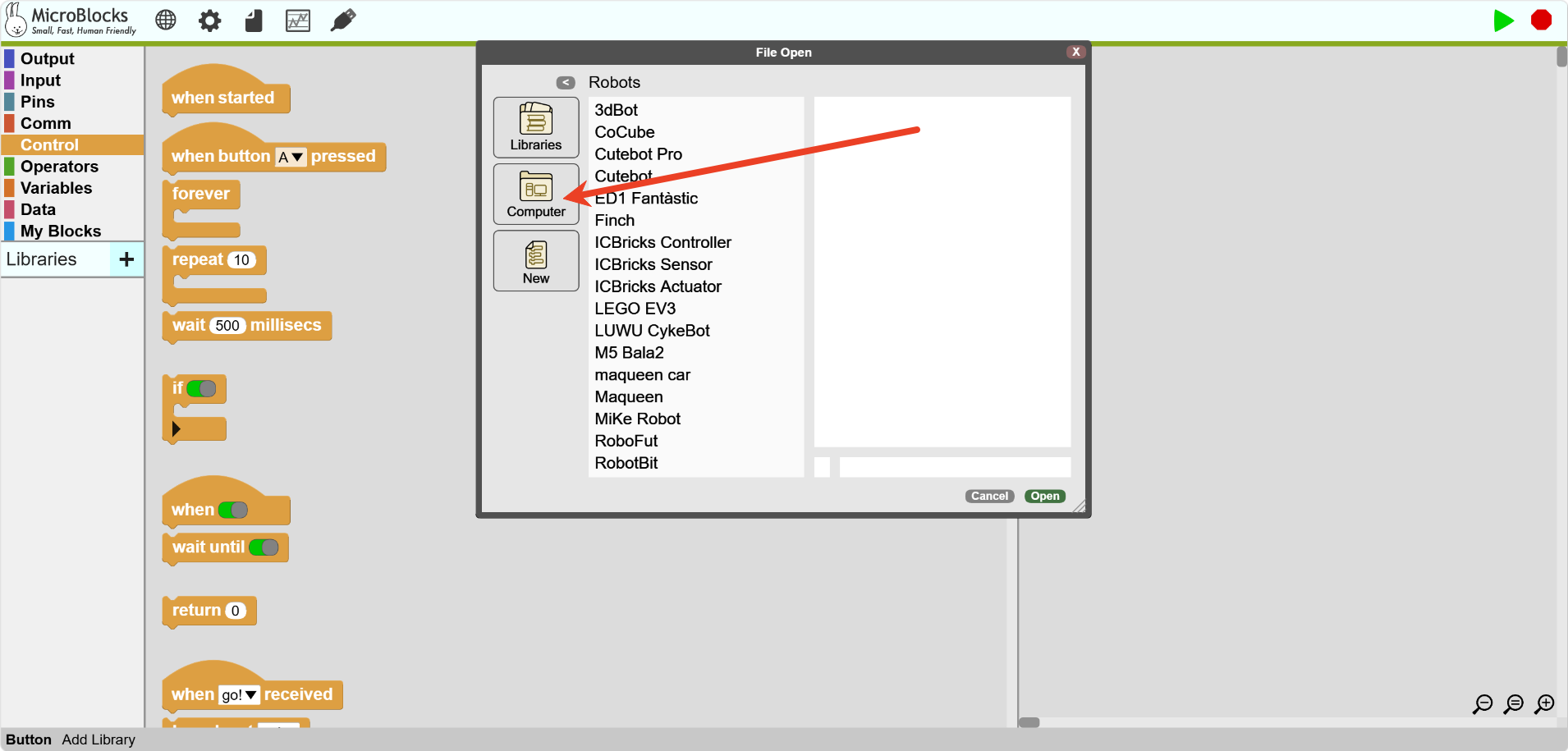
Select import from “Computer.”
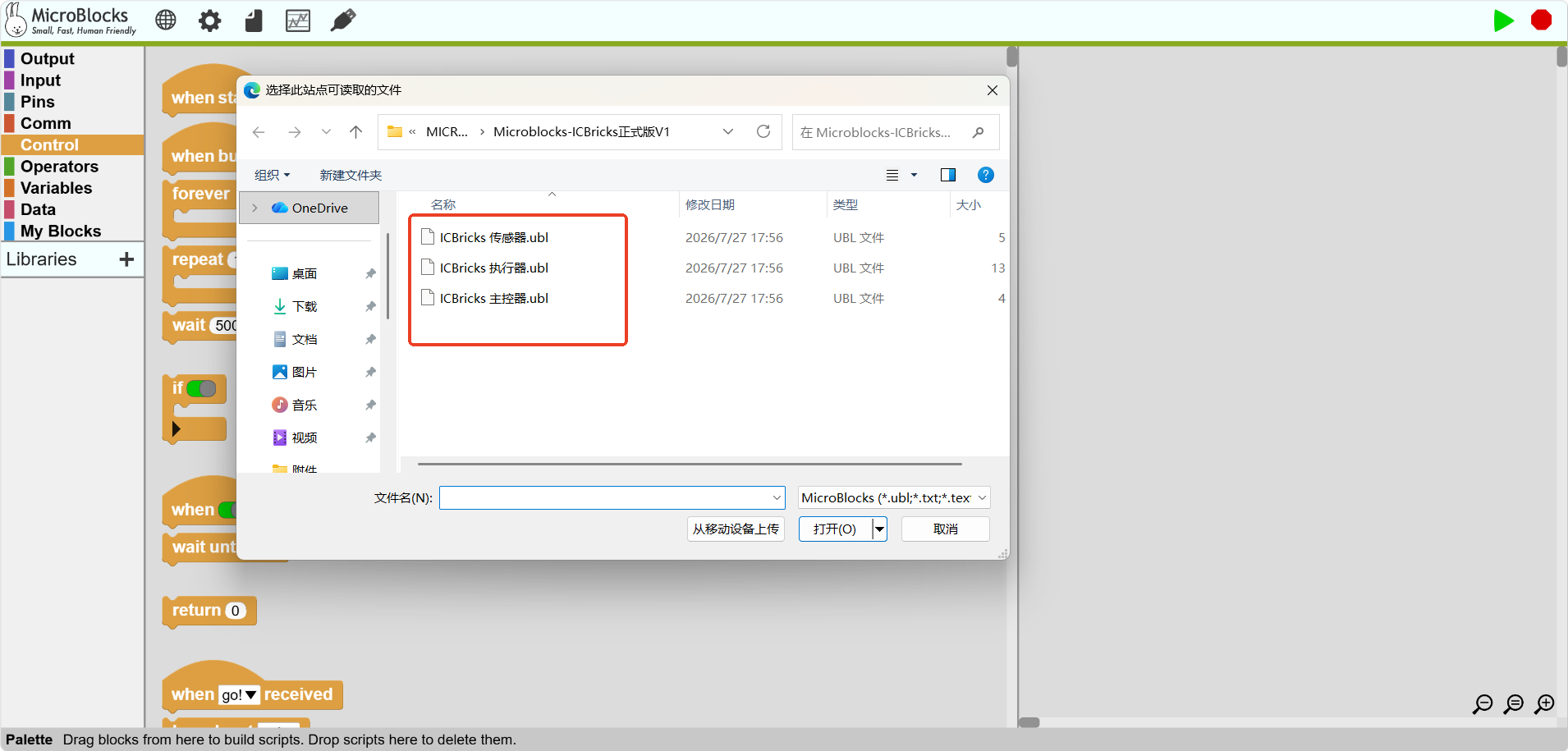
Add extension files one by one.
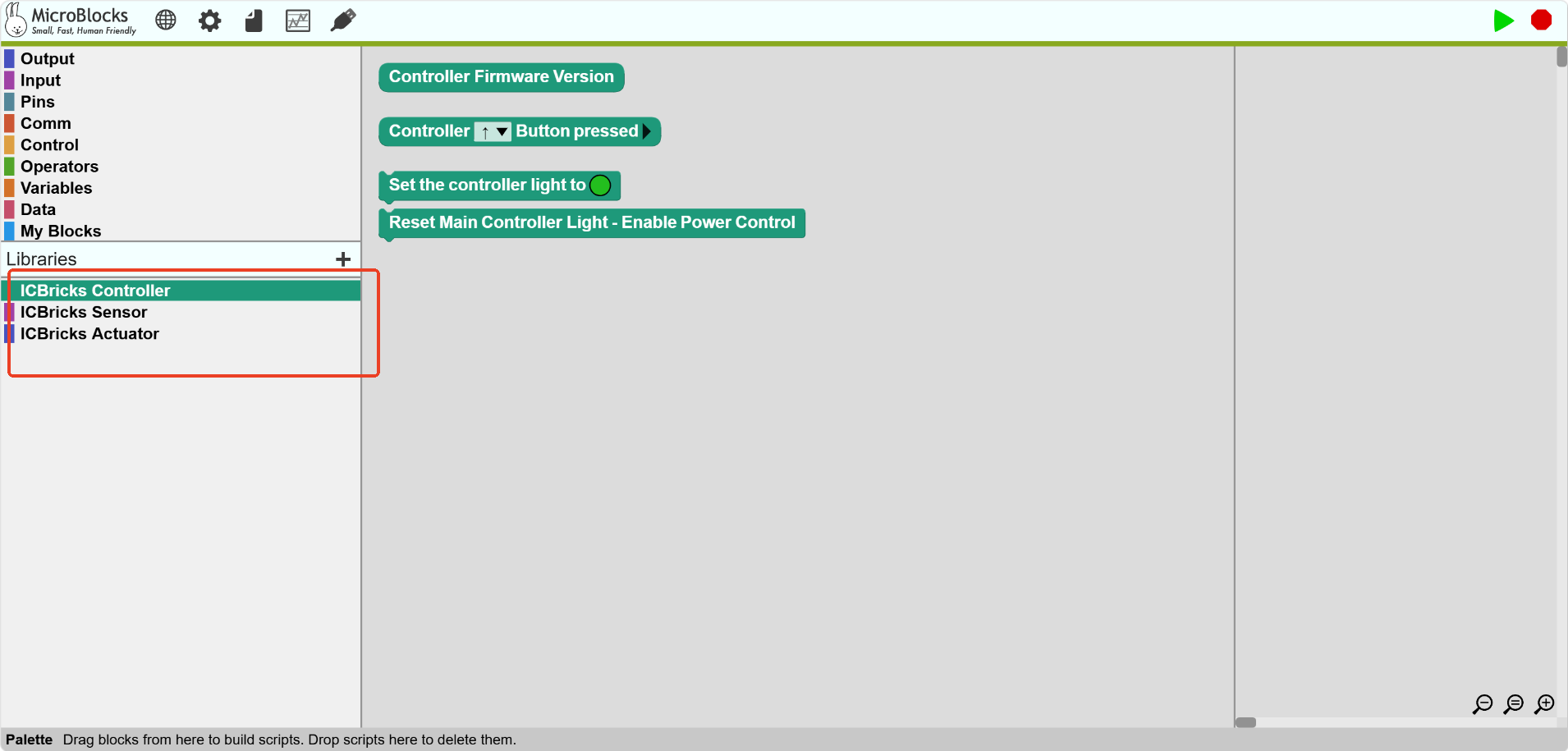
Once added successfully, the extension block library will appear in the block library area.
Setting Up the Motherboard
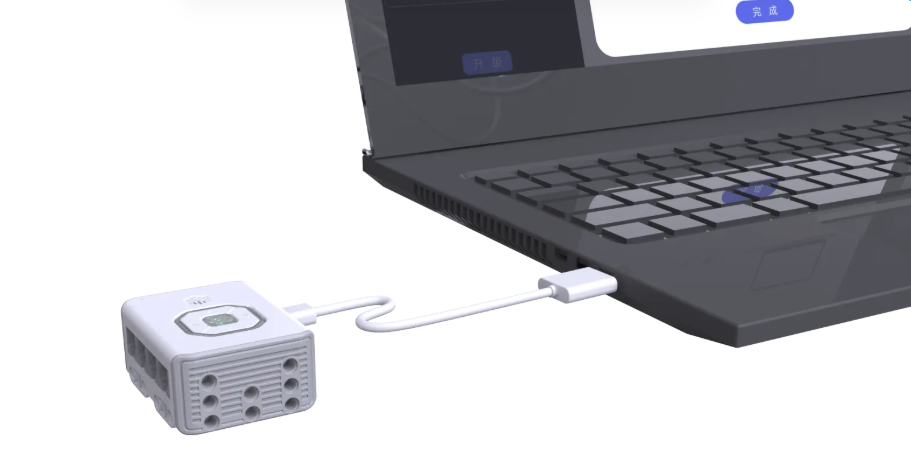
Use a USB data cable to connect the hub to the computer.
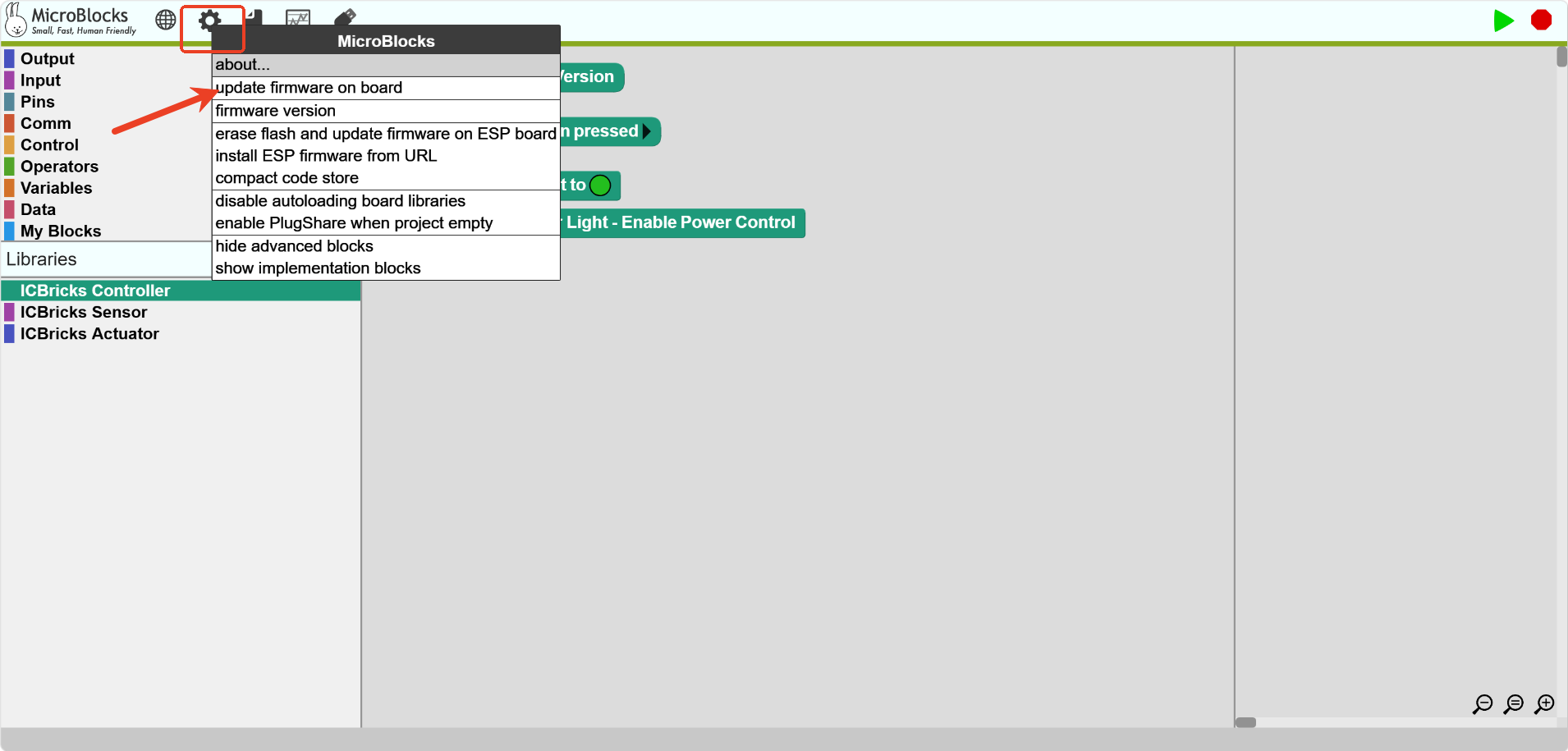
In the top menu bar, click the settings button (⚙️ icon) and select “Upgrade Board Firmware.”
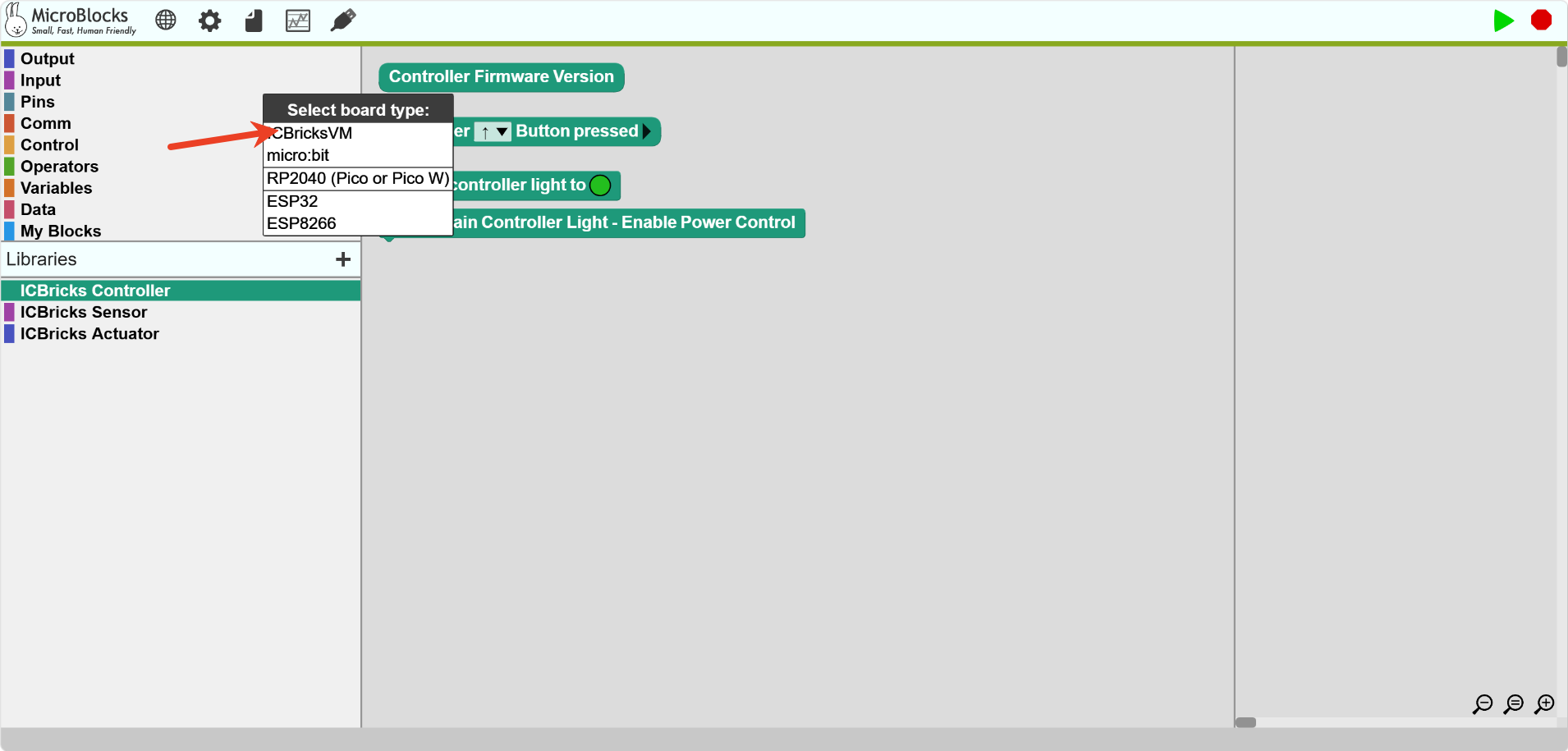
Select the board type: KIDZBricks VM.
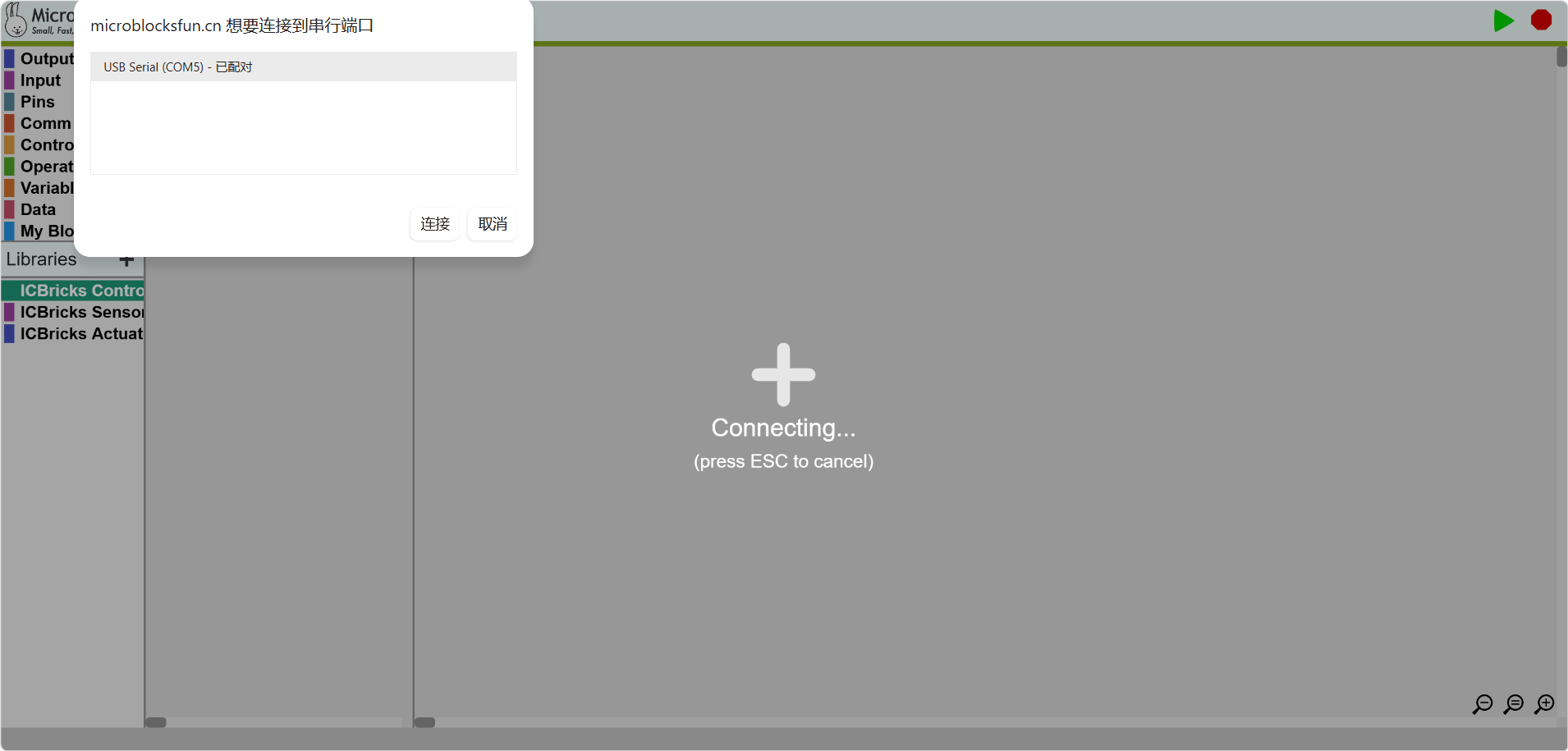
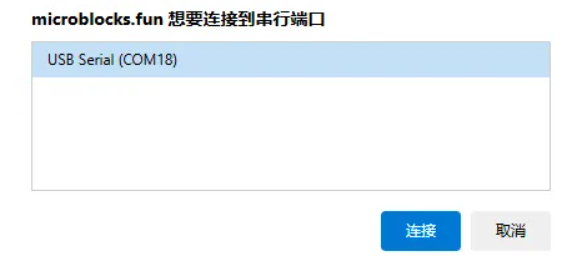
Select the device from the browser dialog, then click “Connect.”
Connecting Devices
Wired Connection
Turn on the hub.
Insert the hub and connect it to the computer.
Click the “Connect” button and select “Board Connection.”
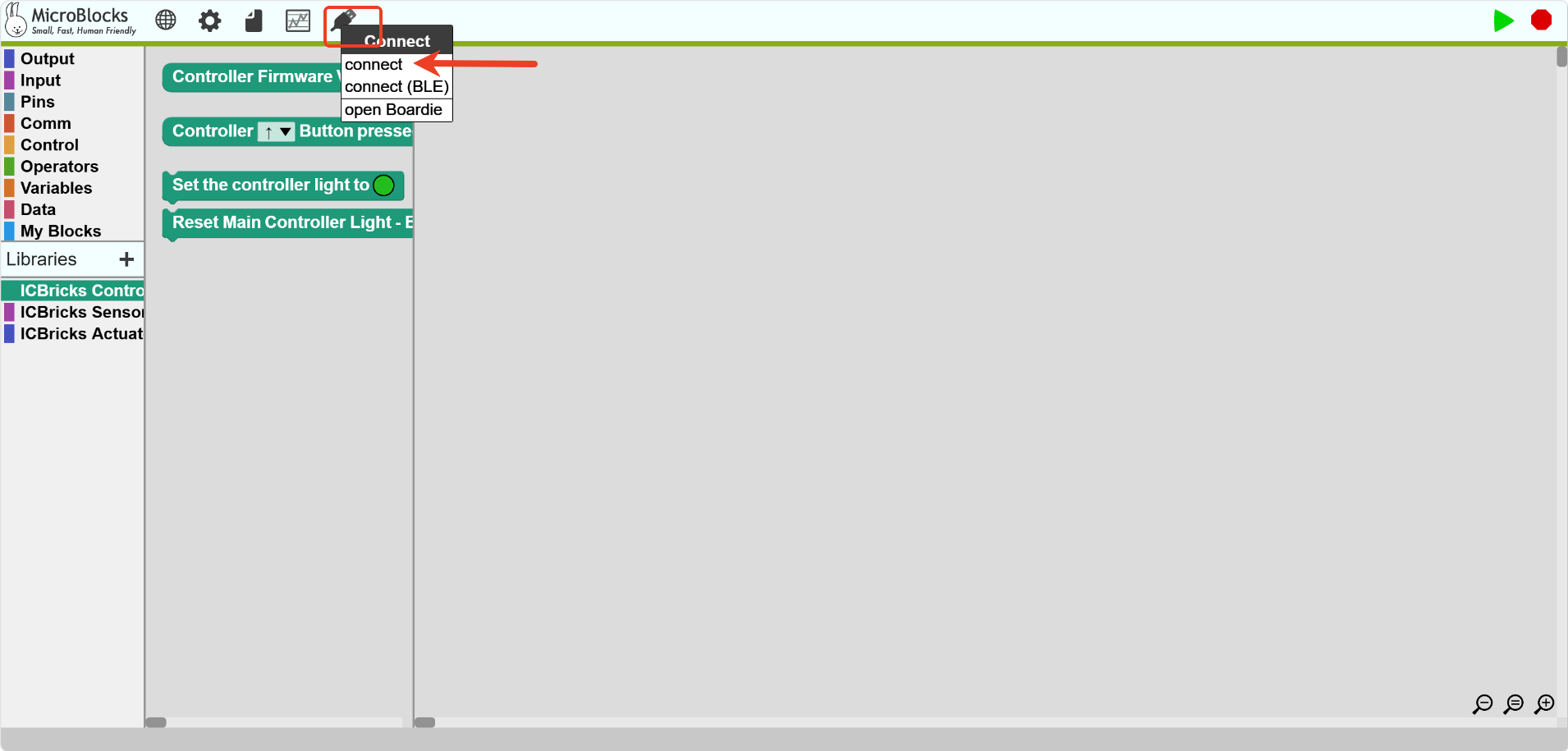
Select the device from the browser dialog, then click “Connect.”
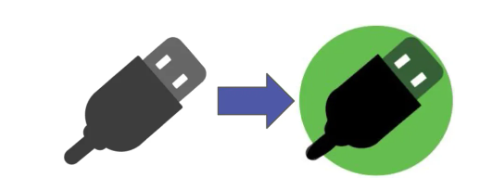
If you have installed the KIDZBricks firmware, the USB icon will show a green circle.
Now, you can use MicroBlocks to program your board!
Wireless Connection
Turn on the hub.
Click the “Connect” button and select “Wireless Connection.”
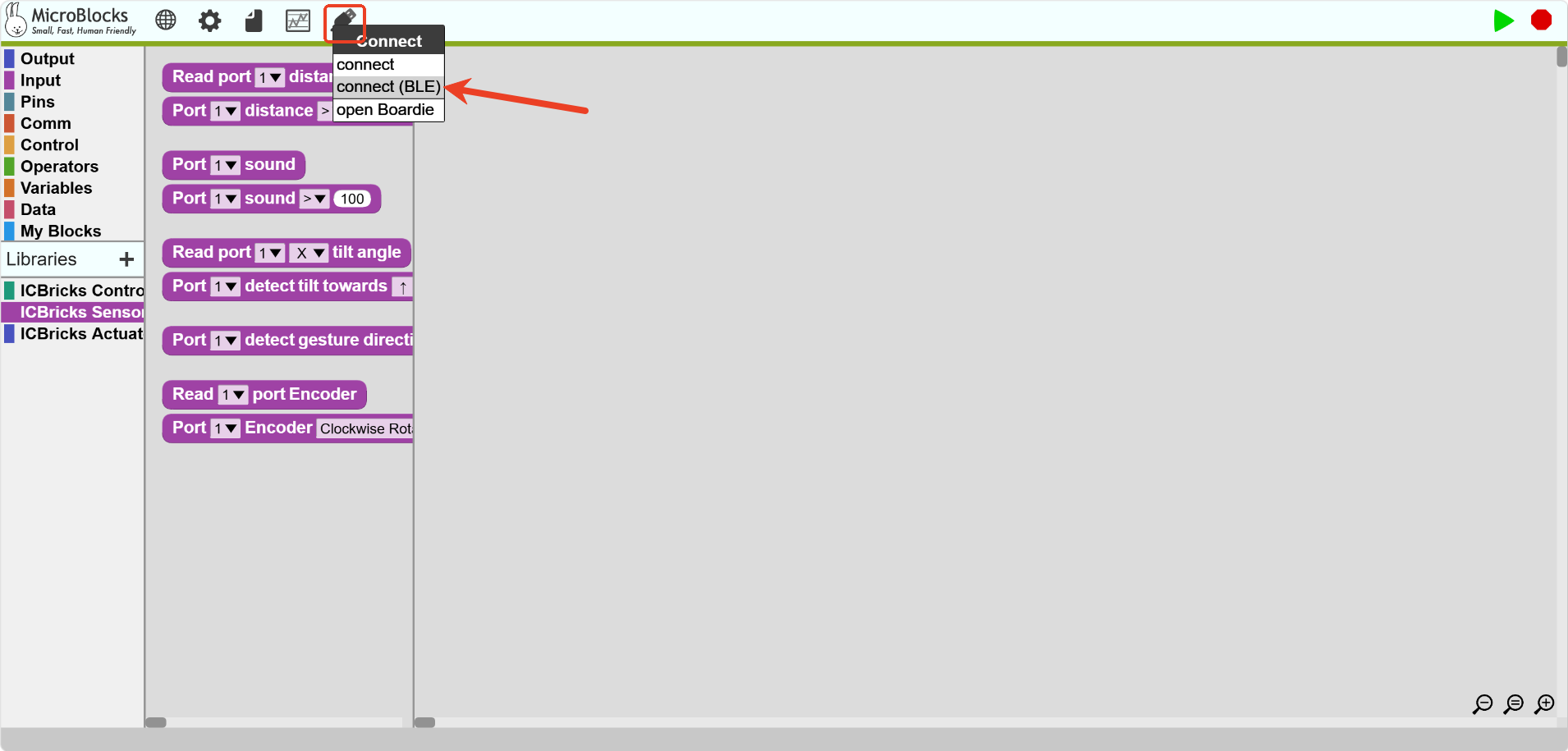
Select the device from the browser dialog, then click “Connect.”
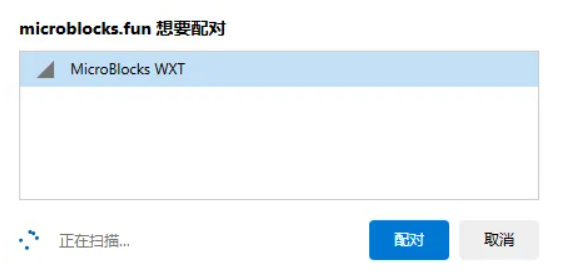
Once connected successfully, the USB icon will show a green circle.
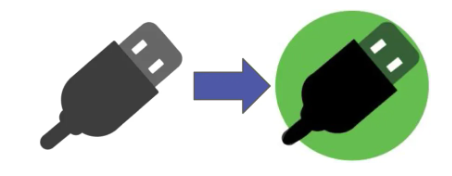
Now, you can use MicroBlocks to program your board!
Starting Coding
Drag blocks to edit the program.
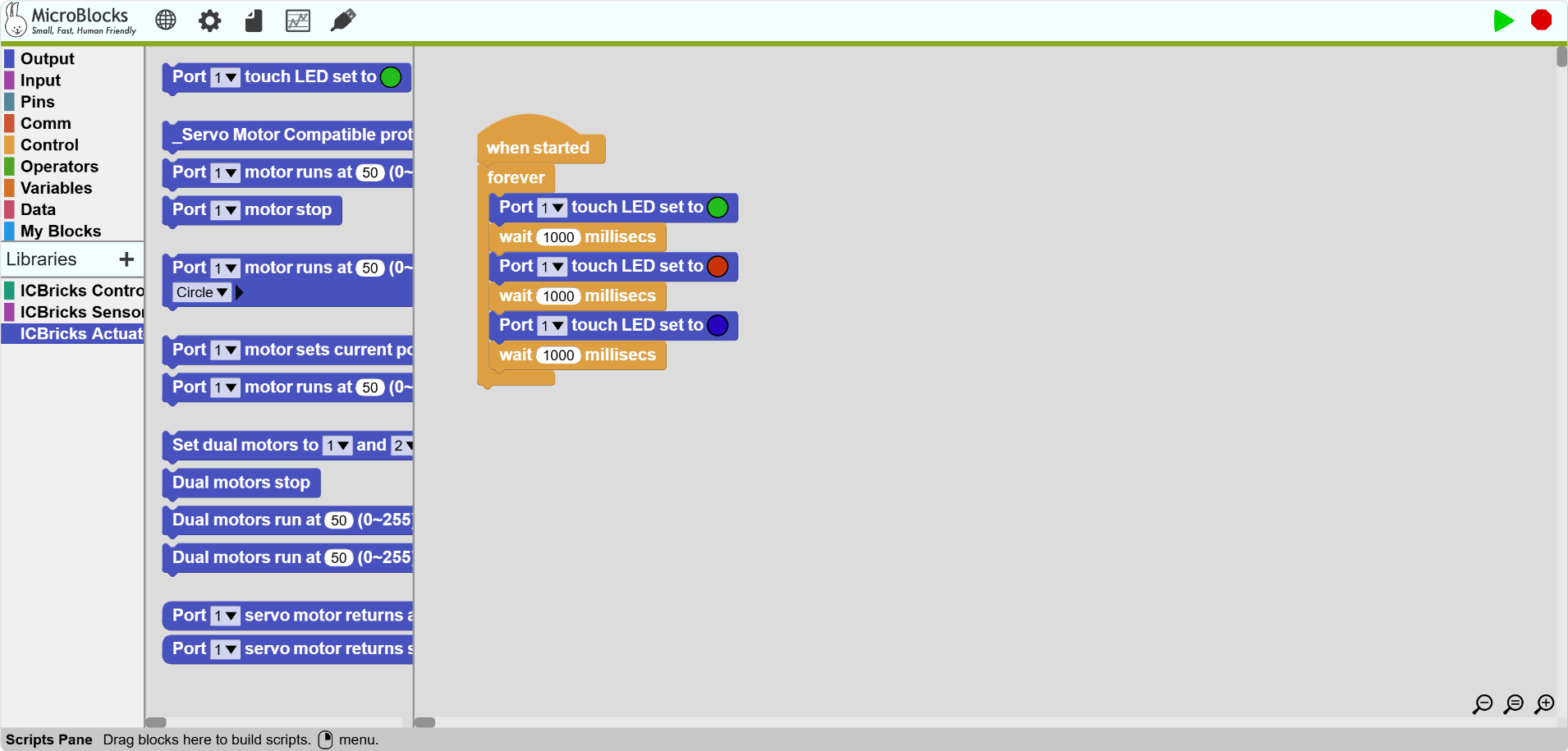
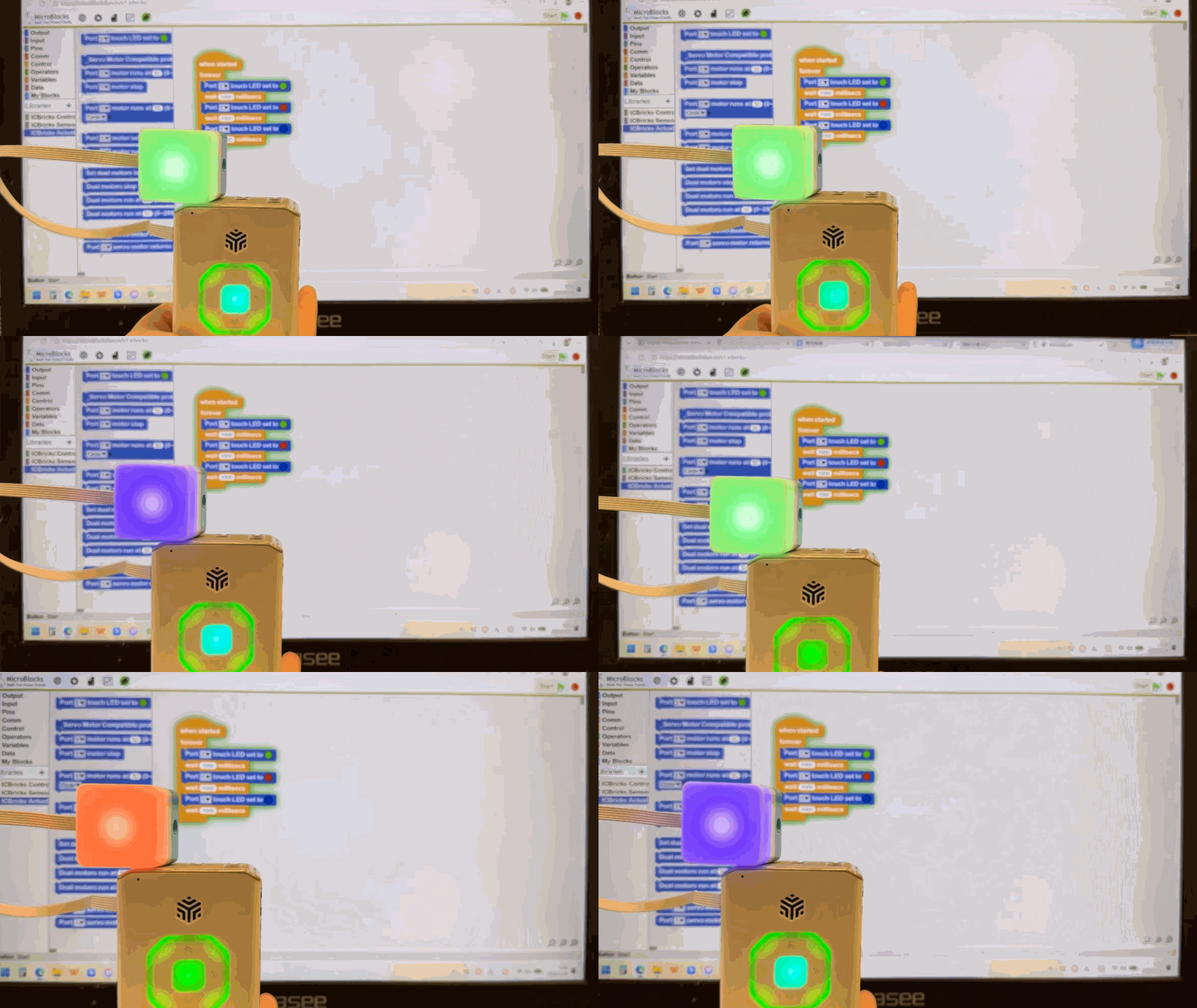
Click the “Start” button to run the program.
More
If you’d like to learn more and explore further, visit the MicroBlocks official website to access more resources and tutorials, and gain a deeper understanding of the MicroBlocks coding environment.